Step 2: Selecting the Patient
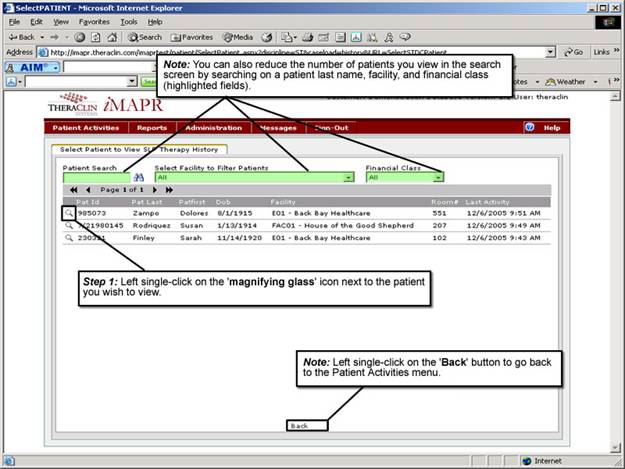
1. Left single-click on the ‘magnifying glass' icon next the patient that you wish to view.
Note:
You can reduce the number of patients you view in the search screen by searching on a patient’s last name, facility, and financial class. To return to the ‘Patient Activities’ menu, left single-click on the ‘Back’ button.
See Also:
Step 1: Accessing the
Speech Therapy - Dysphagia Discontinued Patient Chart Menu
Step 3: Selecting the
Patient's Plan
Step 4: Accessing the
Updated Treatment Plan Selection Screen
Step 5: Viewing an
Updated Treatment Plan
Step 6: Viewing the Patient Certification Information
Step 7: Viewing the Oral Motor Information
Step 8: Viewing the OP Liquid Information
Step 9: Viewing the OP Food Information
Step 10: Viewing the Patient Goals
Step 11: Viewing the Patient Treatment Plan