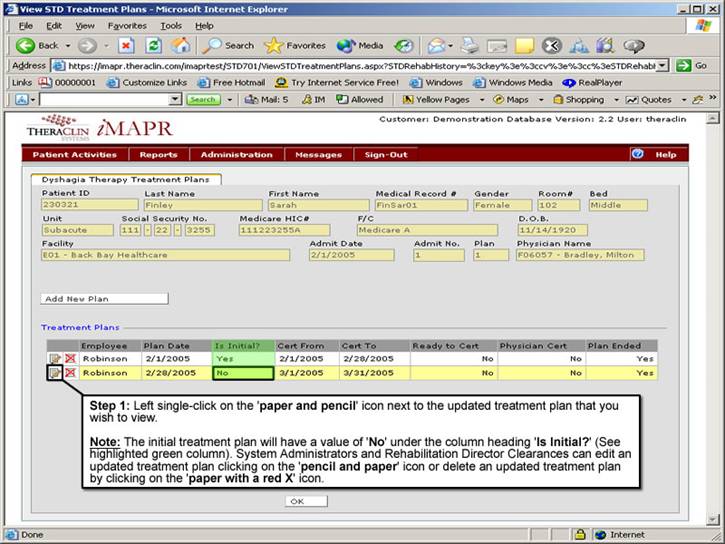
Step 5: Viewing an Updated Treatment Plan
1. Left single-click on the ‘paper and pencil’ icon next to the Updated Treatment plan that you wish to view.
Note:
The updated treatment plan will have a value of ‘No’ under the column heading ‘Is Initial?’ (See highlighted green column). System Administrators and Rehabilitation Director Clearances can edit an updated treatment plan by clicking on the ‘paper and pencil’ icon or delete an updated treatment plan by clicking on the ‘paper and a red X’ icon.
See Also:
Step 1: Accessing the Speech Therapy -
Dysphagia Discontinued Patient Chart Menu
Step 2: Selecting the Patient
Step 3: Selecting the Patient's Plan
Step 4: Accessing the Updated Treatment
Plan Selection Screen
Step 6: Viewing the Patient Certification
Information
Step 7: Viewing the Oral Motor Information
Step 8: Viewing the OP Liquid Information
Step 9: Viewing the OP Food Information
Step 10: Viewing the Patient Goals
Step 11: Viewing the Patient Treatment Plan